
Azure Files provides an advanced cloud-based storage solution that allows companies to create managed file shares that can be accessed through public SMB and NFS protocols. Understanding the cost related to Azure Files is important for decision-making as organizations shift file storage to the cloud.
Initially, the pricing structure for Azure Files might appear confusing. There are several tiers, billing and different cost factors that need consideration. As a result, companies end up paying more for the storage that is hardly used, or choose the wrong storage tier for their workloads.
In this article, I'll cover everything you need to know about Azure Files pricing, emphasizing primary cost components and advanced cost optimization strategies. By the end of the article, you will be able to understand Azure Files pricing structure, the factors affecting cost, and strategies to save cloud storage cost up to 60%.
What is Azure Files?

Azure Files is Microsoft's fully managed cloud file storage service that provides shared file storage accessible through the Server Message Block protocol and Network File System protocol. Unlike Azure Blob Storage, which stores unstructured data as objects, Azure Files creates traditional file shares that applications and users can access just like on-premises file servers.
Key differences between Azure storage services:
Azure Files allows file sharing and access through file system protocols.
Azure Blob Storage provides object storage for unstructured data via REST APIs.
Azure Disk Storage allows block-level storage access for virtual machines.
Common Azure Files use cases include:
Replacing a network-attached storage and file servers set up on a local server.
Supporting lift-and-shift application migrations needing file share access.
Centralizing configuration files and application data.
Shared storage purpose for development and testing environments is created.
Analysis of metrics, logs, and other stored diagnostic data.
Azure Files Pricing Structure Explained
Understanding Azure Files pricing requires familiarity with several key components that determine your monthly costs.
Storage Tiers and Media Types
There are two media types that Azure Files offers:
SSD-based Premium Tier: Built on solid state drives, this tier provides high performance with low latency (nearly 1 ms to 1.5 ms) and is ideal for latency-sensitive tasks. SSD-based Premium tier uses a provisioned billing model (v1 or v2); hence, you pay for the provisioned limits.
HDD-based Standard Tiers: These tiers are more affordable; however, the provisioned limits have a high latency up to 20 ms, which is acceptable for most applications. The standard tiers are further segmented into:
- Transaction Optimized: Suitable for transaction-heavy workloads.
- Hot: For frequently accessed data.
- Cool: For less frequently accessed archival data.
These tiers are available in both provisioned v2 and pay-as-you-go models.
Billing Models
Azure Files offers three primary ways to pay, each tailored to different needs:
Provisioned v2: This is the Azure premium model, and available for both SSD and HDD storage. Provisioning HDD storage is groundbreaking. Now, you can set limits for storage space, IOPS, and throughput. Think of it like reserving a lane on a highway: you pay whether you use the lane the whole time, or only use it during heavy traffic. You will always be assured of performance for the resources that you provision.
Provisioned v1: This model is only for SSD storage. This model also lets you provision capacity and guarantees performance, but there is less flexibility in resource allocation than in v2. If v2 is a flexible dedicated highway lane, v1 is a slightly older, less dedicated, customizable lane.
Pay-as-you-go: This model is for HDD storage only and is similar to the functionality of a utility bill. You pay for storage, transactions, and data used at the rate set, and thus only pay for your actual consumption. It's ideal the use your patterns if they are unpredictable because it allows you to limit and expand your provisioning dynamically without provisioning.
Cost Components
Your Azure Files cost is determined by several factors:
Storage capacity: Charges will be applied based on the capacity provisioned (v1/v2) or on actual usage (pay-as-you-go).
Transactions: Costs apply to file operations like read, write, list, and update on the metadata (mostly for pay-as-you-go).
Data redundancy: Options like LRS, ZRS, GRS, or GZRS will change the durability and the costs.
Network egress: Moving data out of an Azure region will attract additional costs.
Snapshots: Charged based on the differential storage, i.e., only the changes made since the last one.
Azure Files Pricing by Tier
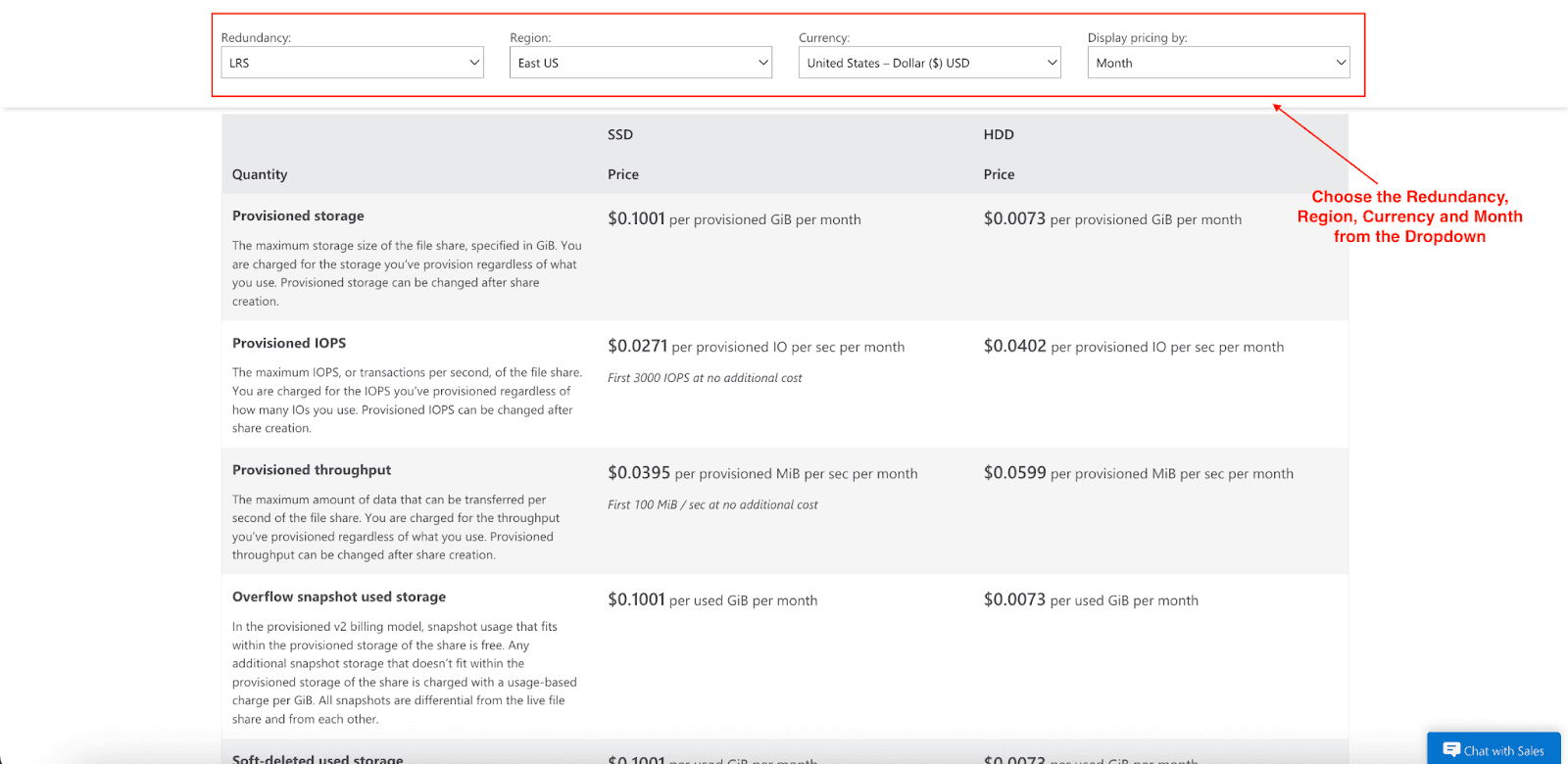
Here's a detailed breakdown of Azure Files pricing across different tiers and billing models:
Provisioned v2 Pricing
Media Type | Price Range (per provisioned GiB/month) | Performance Profile |
SSD | $0.1001 - $0.1249 | High performance, low latency |
HDD | $0.0073 - $0.0183 | Cost-effective, higher latency |
Provisioned v1 Pricing
Media Type | Price Range (per provisioned GiB/month) | Availability |
SSD | $0.16 - $0.2000 | Premium tier only; legacy model being replaced by v2 |
Pay-as-you-go Pricing (HDD only)
Access Tier | Price Range (per used GiB/month) | Ideal Use Case |
Transaction Optimized | $0.0600 - $0.1350 | General workloads with frequent access |
Hot | $0.0255 - $0.0593 | Frequently accessed data |
Cool | $0.0150 - $0.0338 | Infrequently accessed data |
Note: Pricing varies by region and redundancy option selected
Redundancy Options Impact on Cost
Redundancy Type | Description | Cost Impact |
LRS | Locally redundant; 3 copies within a single data center. | Lowest cost option |
ZRS | Zone redundant; copies across 3 zones in a region. | ~25% higher than LRS |
GRS | Geo redundant; copies data to a paired region asynchronously. | ~67% higher than LRS |
GZRS | GeoZone Redundant, combines ZRS + GRS | Highest cost, best durability |
Scenario: Calculating Azure Files Cost
Let's walk through a practical example of estimating Azure Files costs for a medium-sized business scenario.
Scenario: A company needs 5 TB of file storage for its accounting department with moderate access patterns.
Option 1: Provisioned v2 HDD with LRS
Storage: 5,000 GB × $0.0073/GB = $36.50/month
IOPS: 3,000 baseline IOPS included
Throughput: 60 MiB/s baseline included
Estimated monthly cost: ~$37
Option 2: Pay-as-you-go Transaction Optimized
Storage: 5,000 GB × $0.06/GB = $300/month
Transactions: ~50,000 operations × $0.0015/1,000 = $0.08
Estimated monthly cost: ~$300
Hidden Costs to Consider
Data transfer out: $0.087/GB for the first 10 TB
Snapshots: Same rate as storage tier selected
Azure File Sync: $1/sync endpoint if using hybrid scenarios
Use the Azure Pricing Calculator for precise estimates based on your specific requirements and region.
Cost Optimization Tips for Azure Files
Choose the Right Tier
Before selecting a tier, analyze your use patterns:
Cool Tier: Ideal for data accessed less than once a month.
Hot Tier: Ideal for data that is accessed frequently.
Premium Tier: Ideal for latency-sensitive workloads.
Leverage Reserved Capacity
With Azure Files Reservations, you can get discounts of up to 36% for committing to one or three-year terms. Reservations are in 10 TiB and 100 TiB increments for premium, hot, and cool tiers.
Implement Lifecycle Management
Lifecycle policies set to move data and files on a schedule to minimize the costs associated with premiums for less-accessed files.
Monitor with Azure Cost Management
Use Azure built-in cost management tools to understand your patterns and manage any spiking costs. Set up automated alerting when costs exceed expected thresholds.
Consider Pump for Advanced Optimization
If you are managing significant Azure workloads, Pump's AI-driven cost optimization platform can optimize costs up to 10-60% across the rest of your infrastructure. Pump's sophisticated AI analyzes your usage behavior to get Reserved Instances and Savings Plans automatically for the best pricing.
Pump has two modes of operation:
Autopilot mode: Full automation with AI handling all optimization decisions.
Manual mode: Receive AI recommendations while maintaining control over implementation.
The platform achieves the group buying cost advantage through consolidated billing as well as waterfall coverage, which allows unused commitments to be allocated across varied organizations and time zones.
Choosing the Right Azure Files Tier
Use this framework to determine the most appropriate tier for your workloads.
Access Frequency Analysis
Daily access: Use the Transaction Optimized or Hot tier.
Weekly access: Use the Hot tier.
Monthly or less frequent access: Choose the Cool tier.
High-performance needs: Choose the Premium tier.
Performance Requirements
Critical low latency: Use Premium SSD.
Standard performance: Standard HDD is sufficient.
Burst performance: Use provisioned models.
Consider Your Budget
Predictable workloads: Use provisioned models with reservations.
Variable workloads: Opt for pay-as-you-go.
Long-term commitments: Use Azure reservations for maximum savings.
Geographic and Compliance Needs
High availability: Use GRS or GZRS.
Regional presence: LRS or ZRS is adequate.
Cost-sensitive setups: Choose LRS and implement manual backup strategies.
Conclusion
Avoid overwhelming concerns for Azure Files pricing. Understanding billing models, choosing the right tiers, and optimizing will help retain performance for reduced cloud storage costs.
The objective is to ensure the storage tier represents practical usage without overextending for hypothesized peaks. Regular assessments guarantee maximum value as needs shift.
Are you looking to spend less on your Azure storage? Use the Azure Pricing Calculator or learn how Pump’s AI-powered optimization service can lower your Azure spend by up to 60% without any engineering effort.